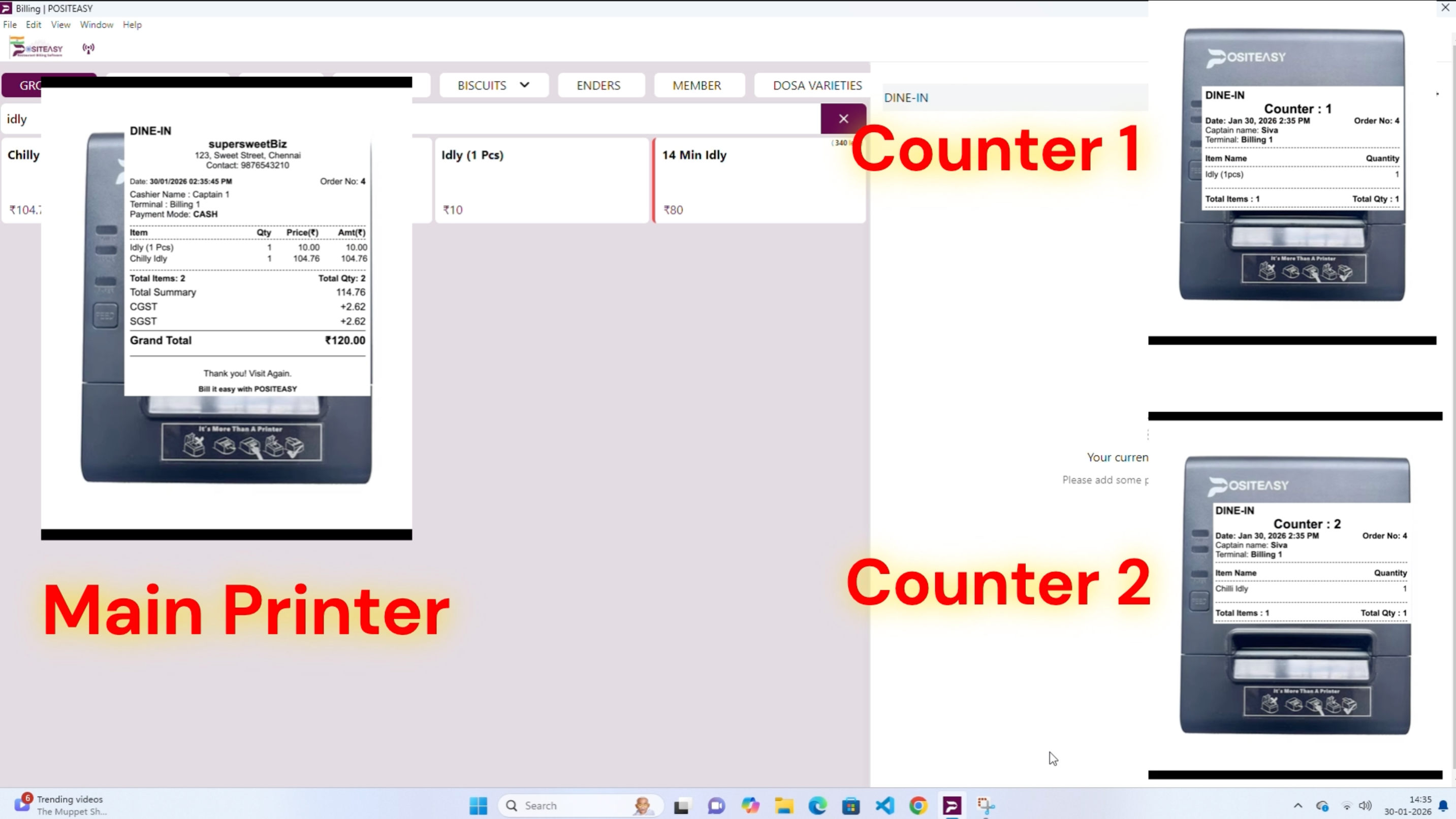
Turn on a separate KOT printer in the POSITEASY Staff App (Windows)
Overview
This guide explains how to set up a separate Kitchen Order Ticket (KOT) printer in the POSITEASY Staff App for Windows.
After completing these steps, POSITEASY can:
- Print the customer bill from your main bill printer.
- Print KOT slips to a kitchen printer.
- (Optional) Print separate KOT slips to different counters (for example, kitchen, beverages, and desserts).
Prerequisites
Before you set up a separate KOT printer, ensure that:
- Your Windows printer driver is installed and your printers appear in Windows. Refer Install a POSITEASY USB printer on Windows
- You know the exact Windows printer name for each printer.
Set up an overall KOT printer
Use this setup when you want a single KOT for the entire order.
-
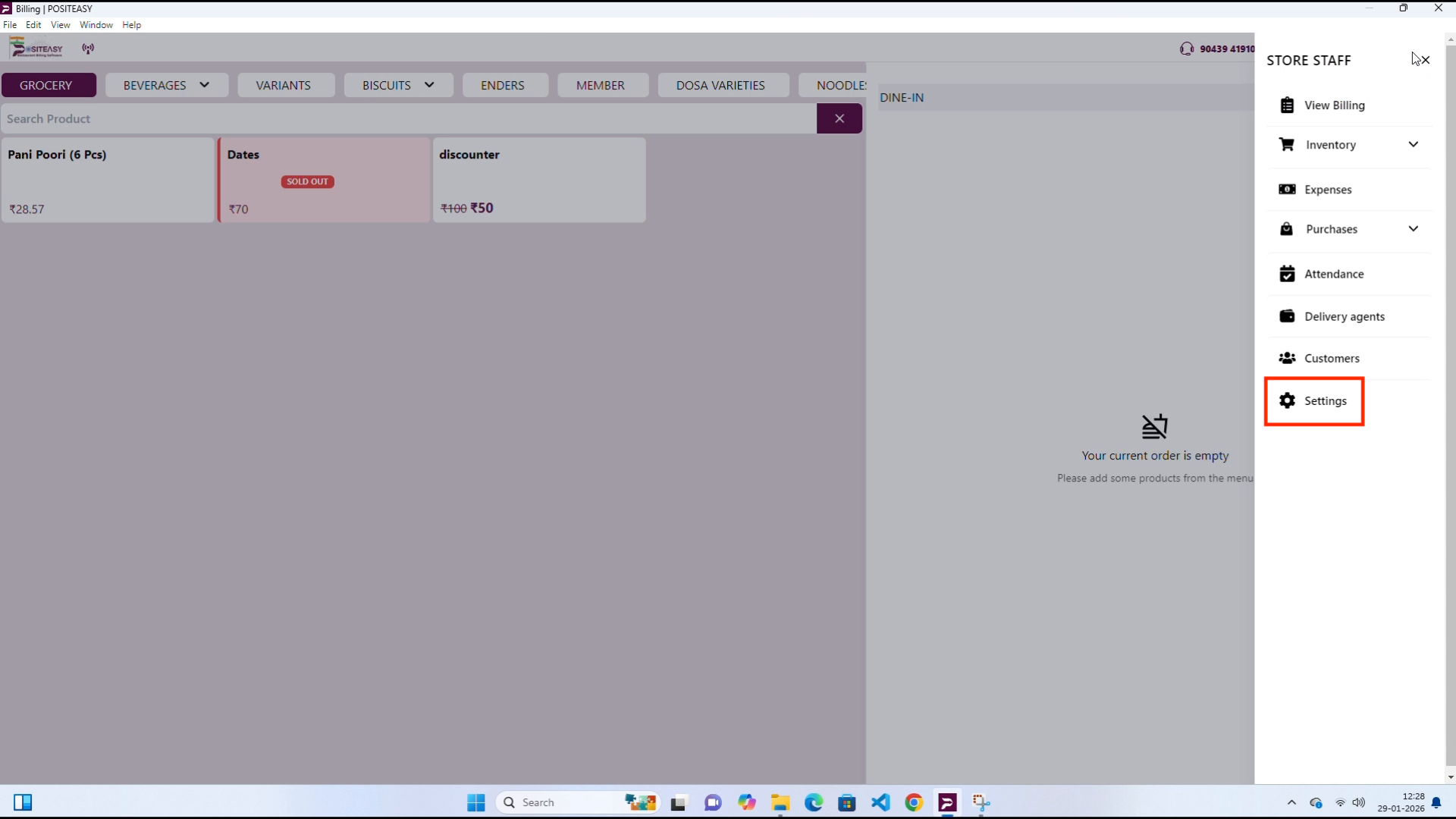
Step 1: Open Settings.
-
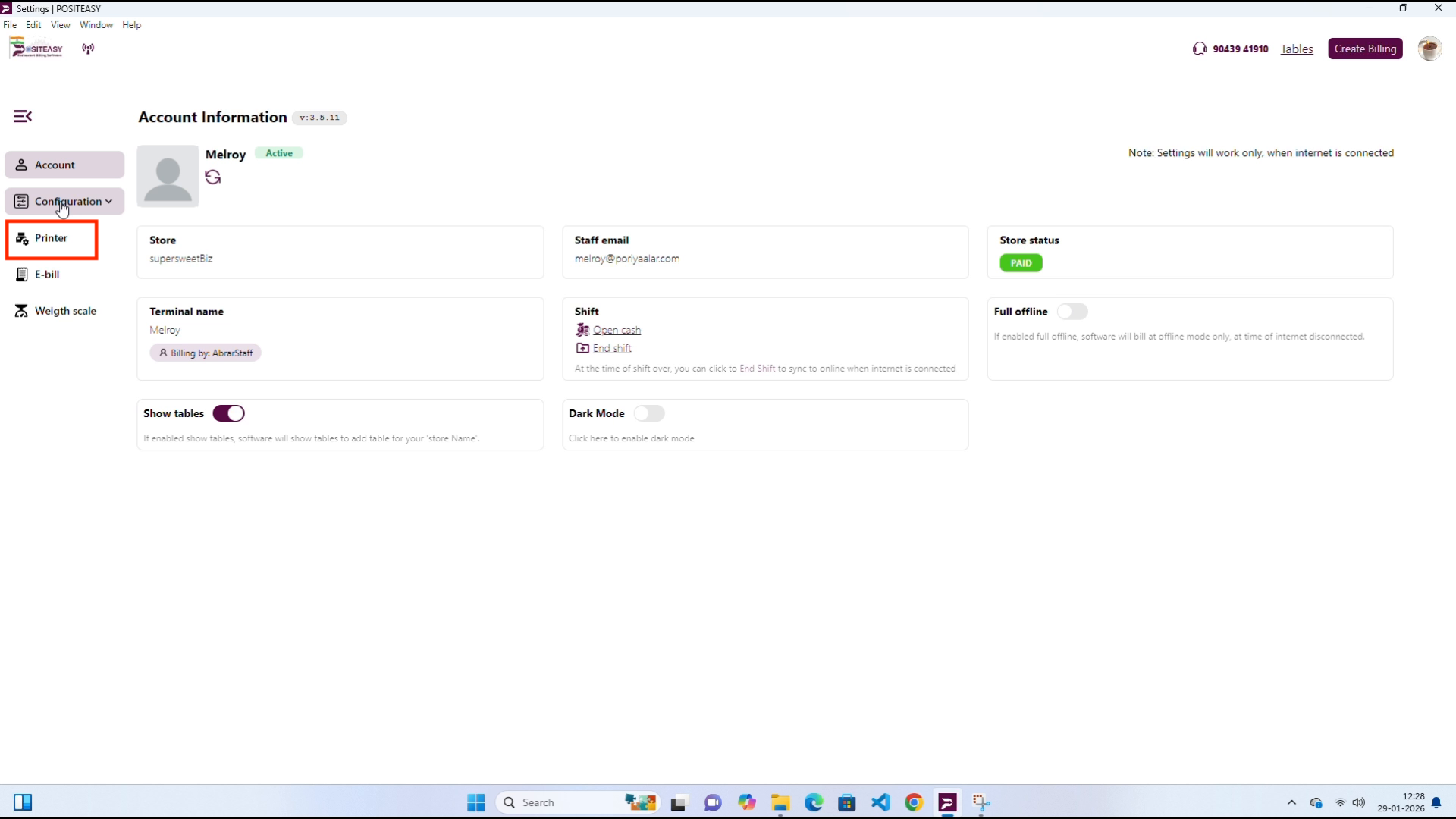
Step 2: Select Printer.
-
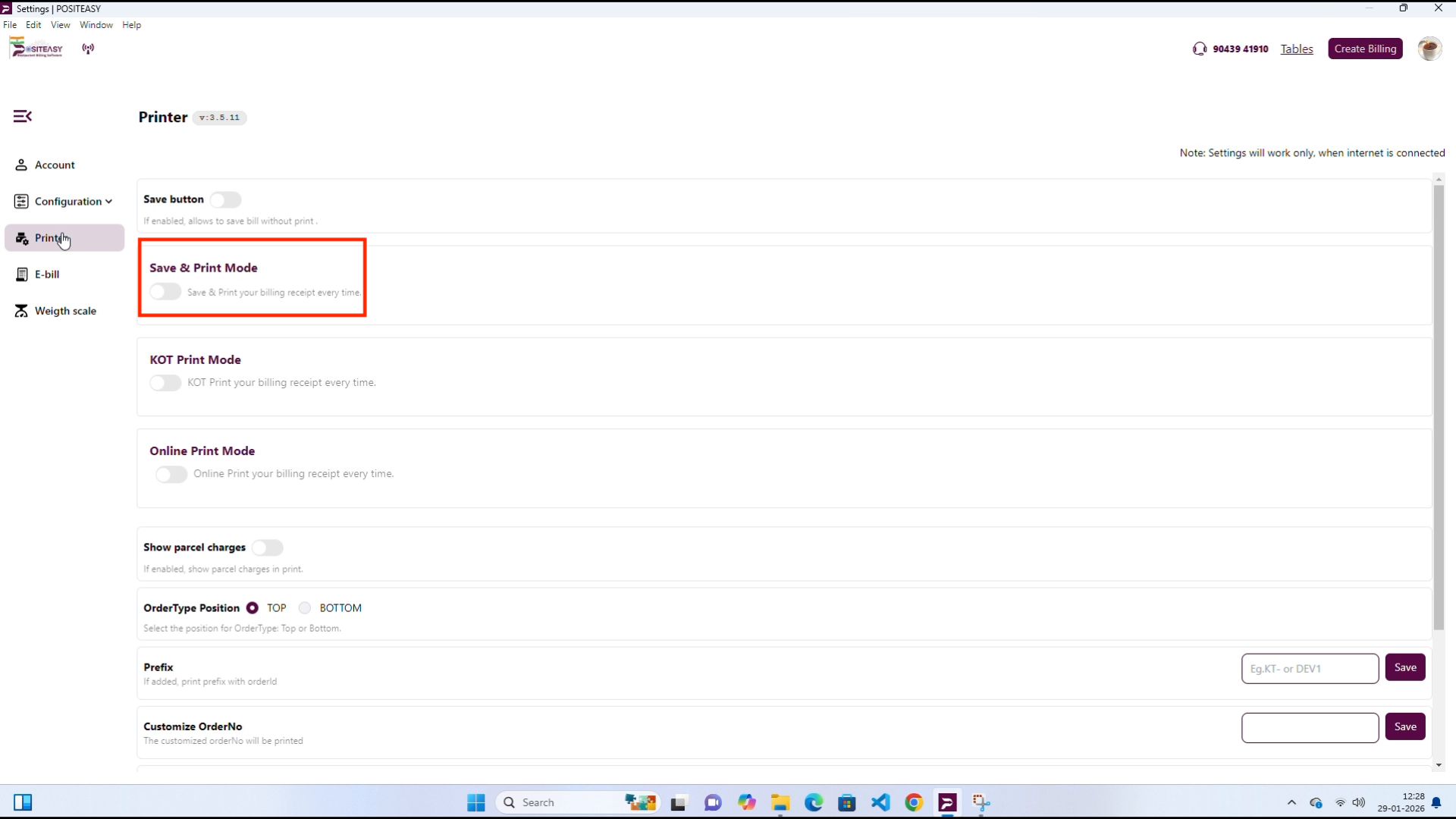
Step 3: Configure your main bill printer.
-
Turn on Save & Print Mode.
-
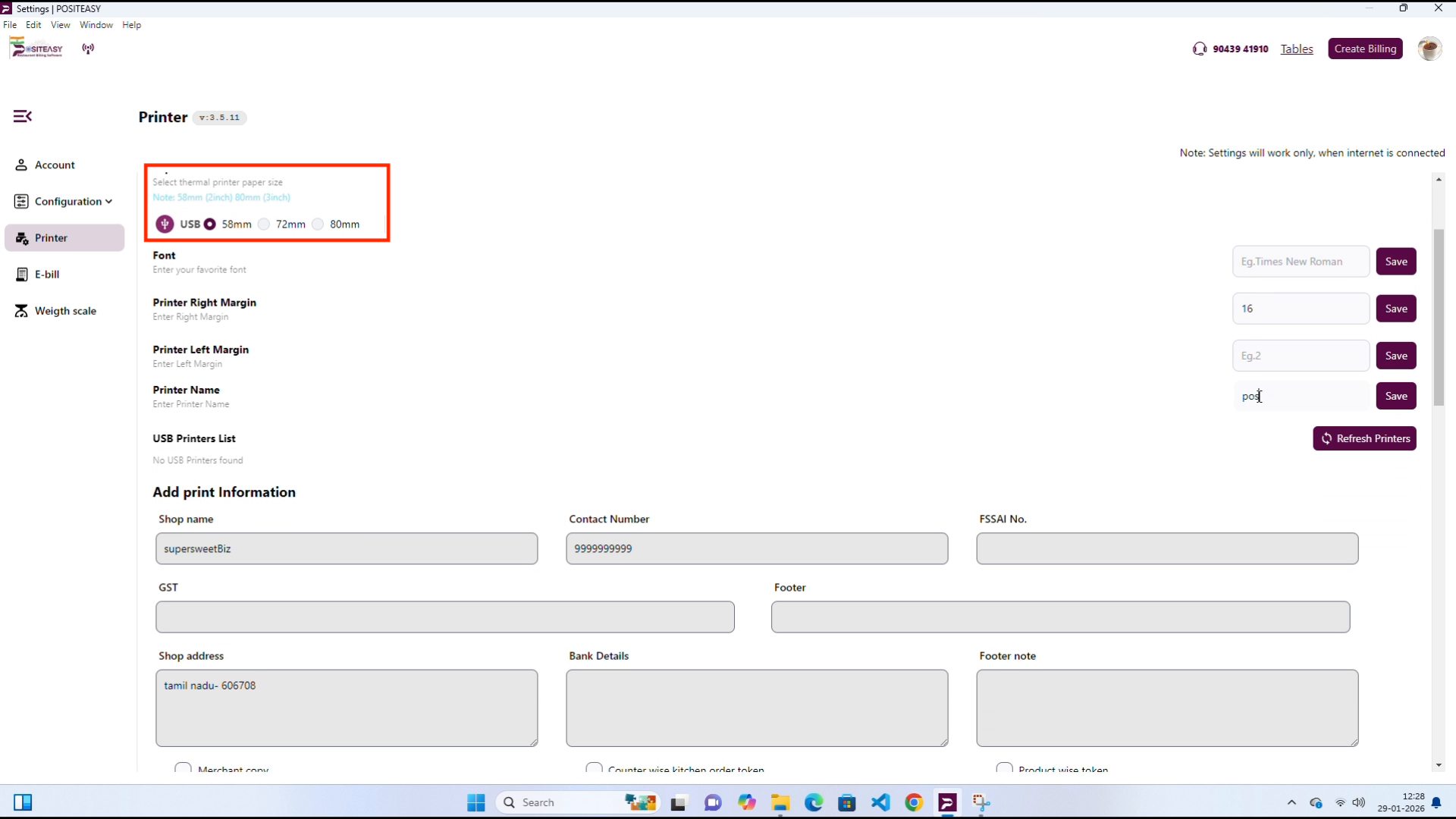
Select the Paper Size.
-
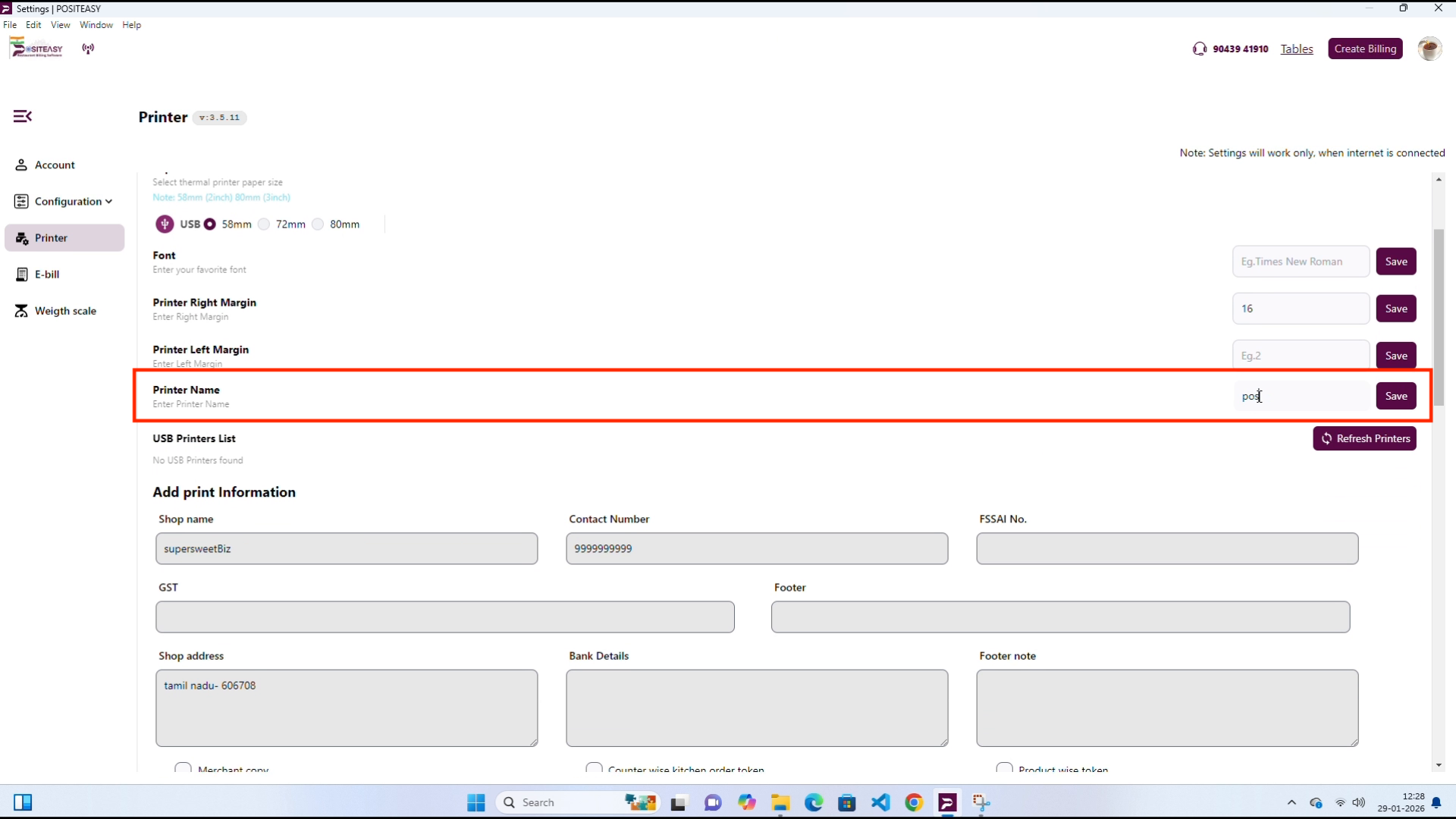
Enter the Windows printer name in Printer Name, and then select Save.
-
-
Step 4: Turn on KOT printing.
-
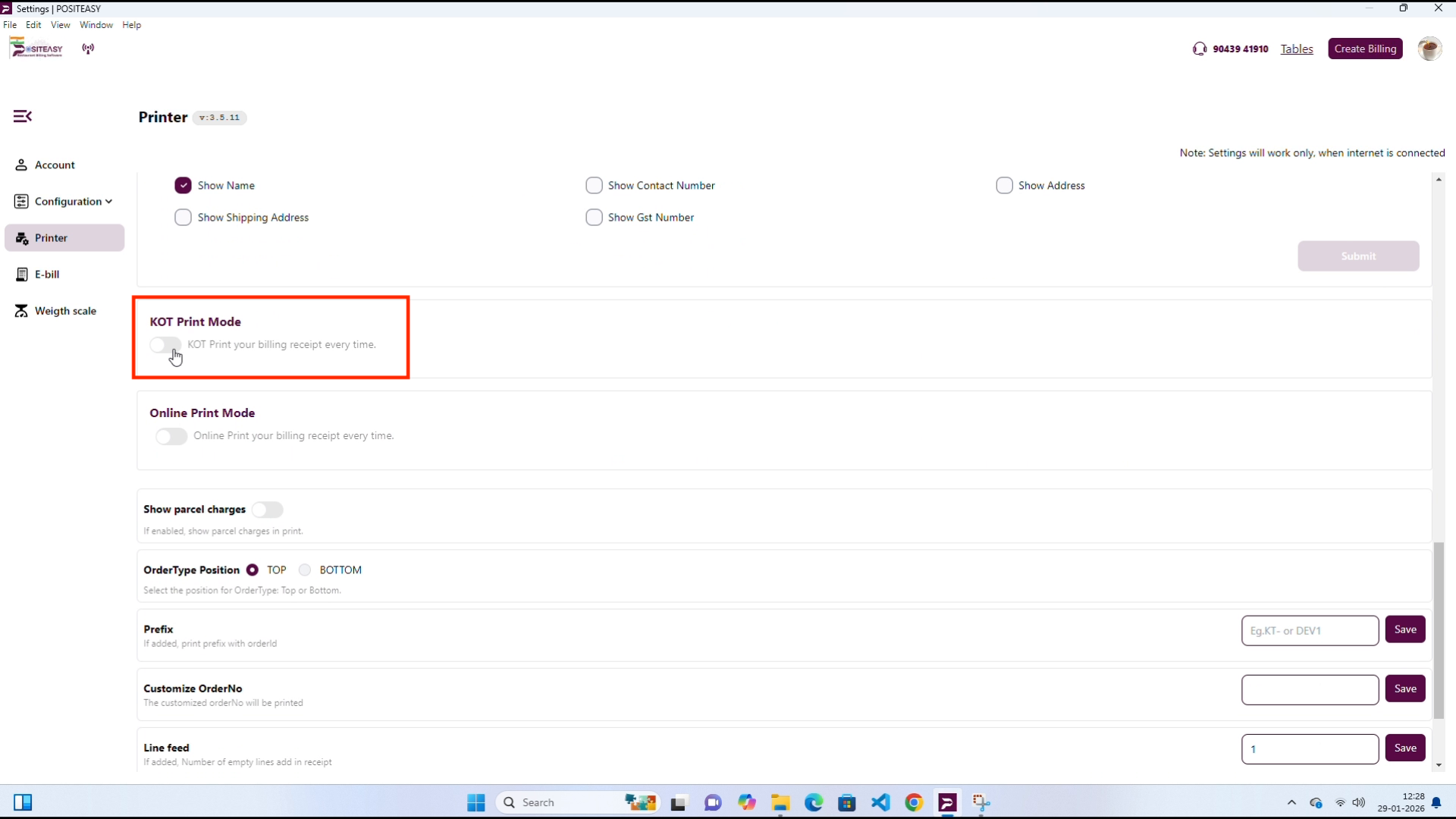
Scroll to KOT Print Mode.
-
Turn on KOT Print Mode.
-
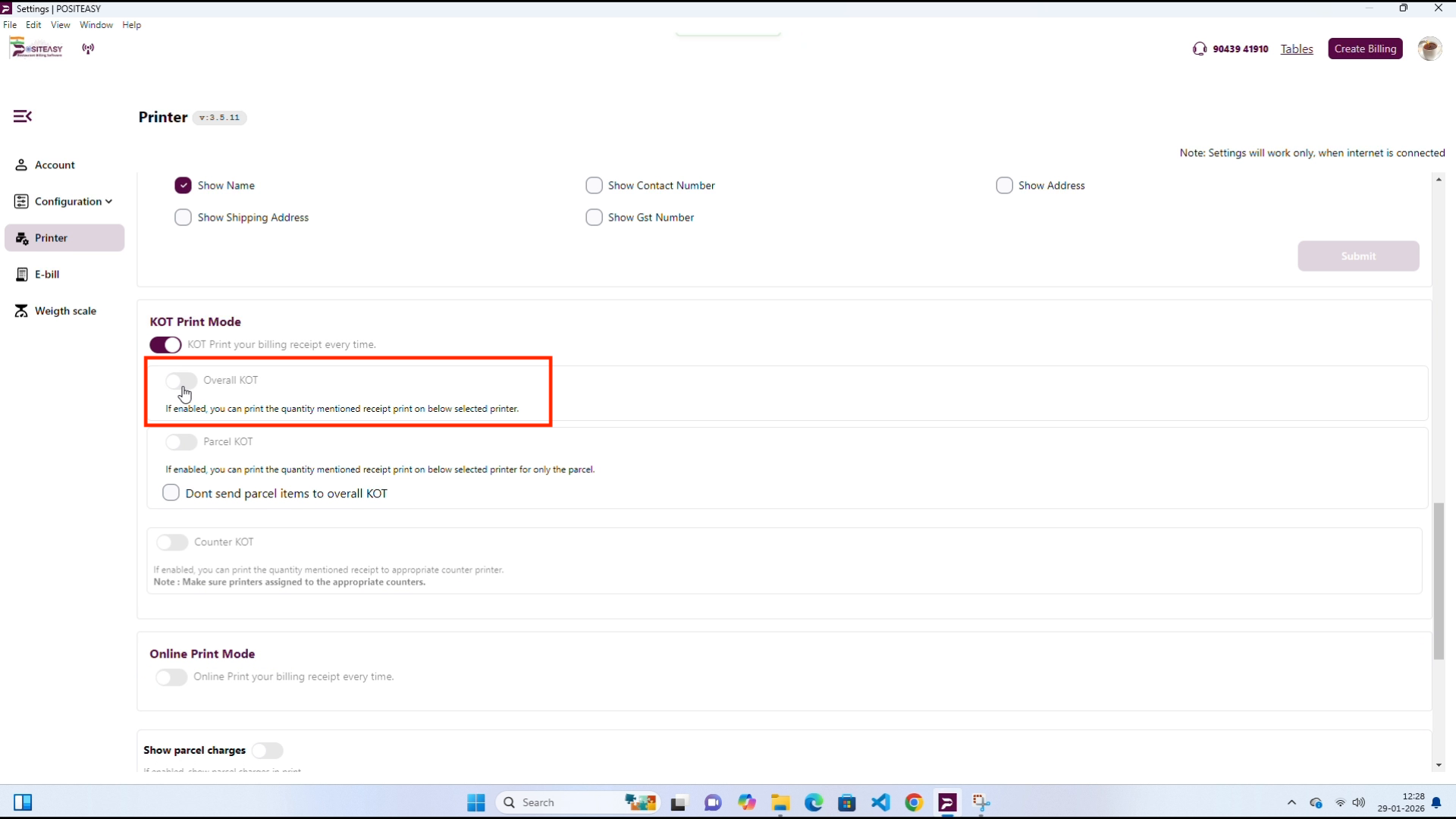
Turn on Overall KOT.
-
-
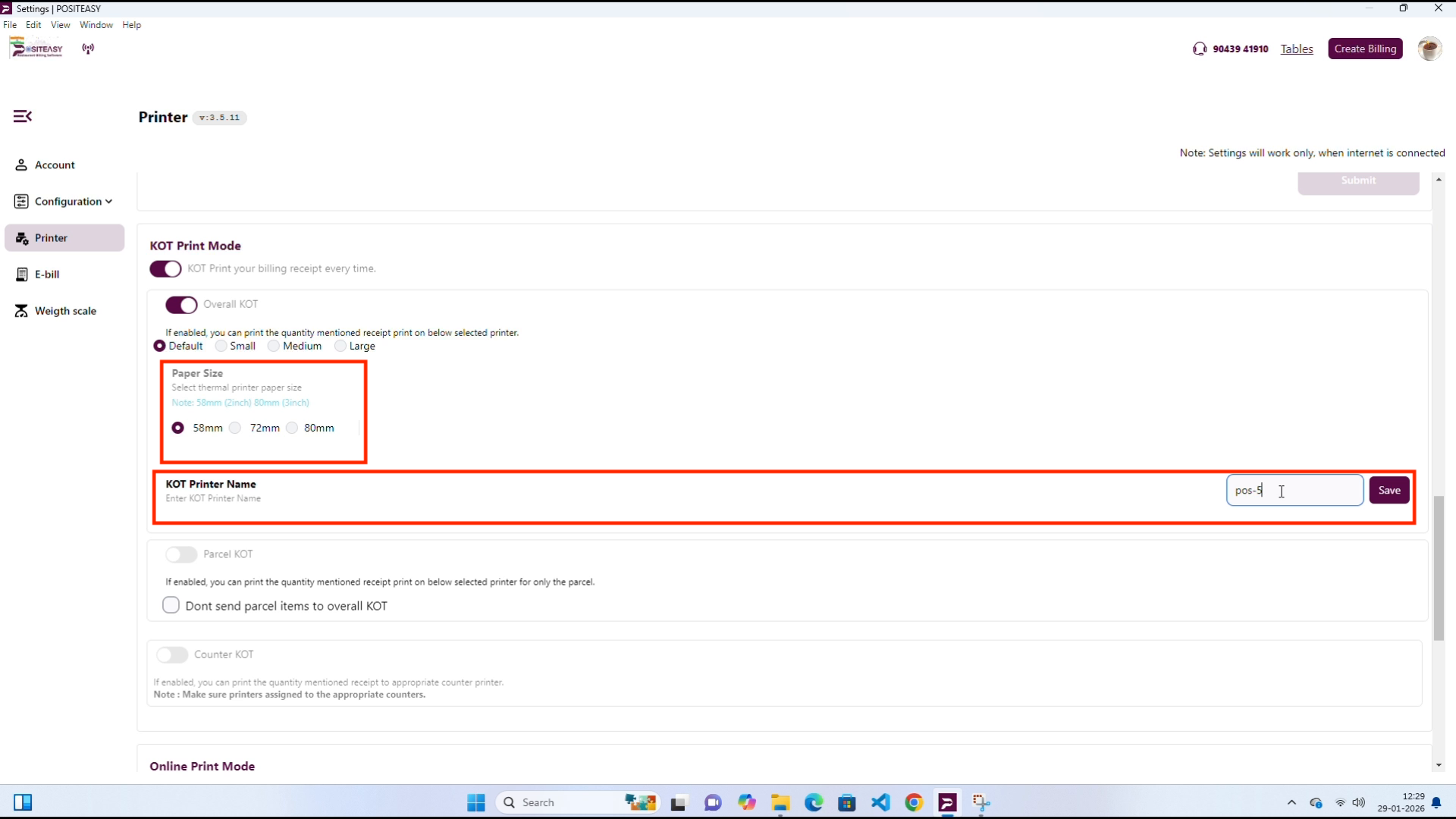
Step 5: Configure the KOT printer.
-
Select the Paper Size for KOT slips.
-
Enter the Windows printer name in KOT Printer Name, and then select Save.
-
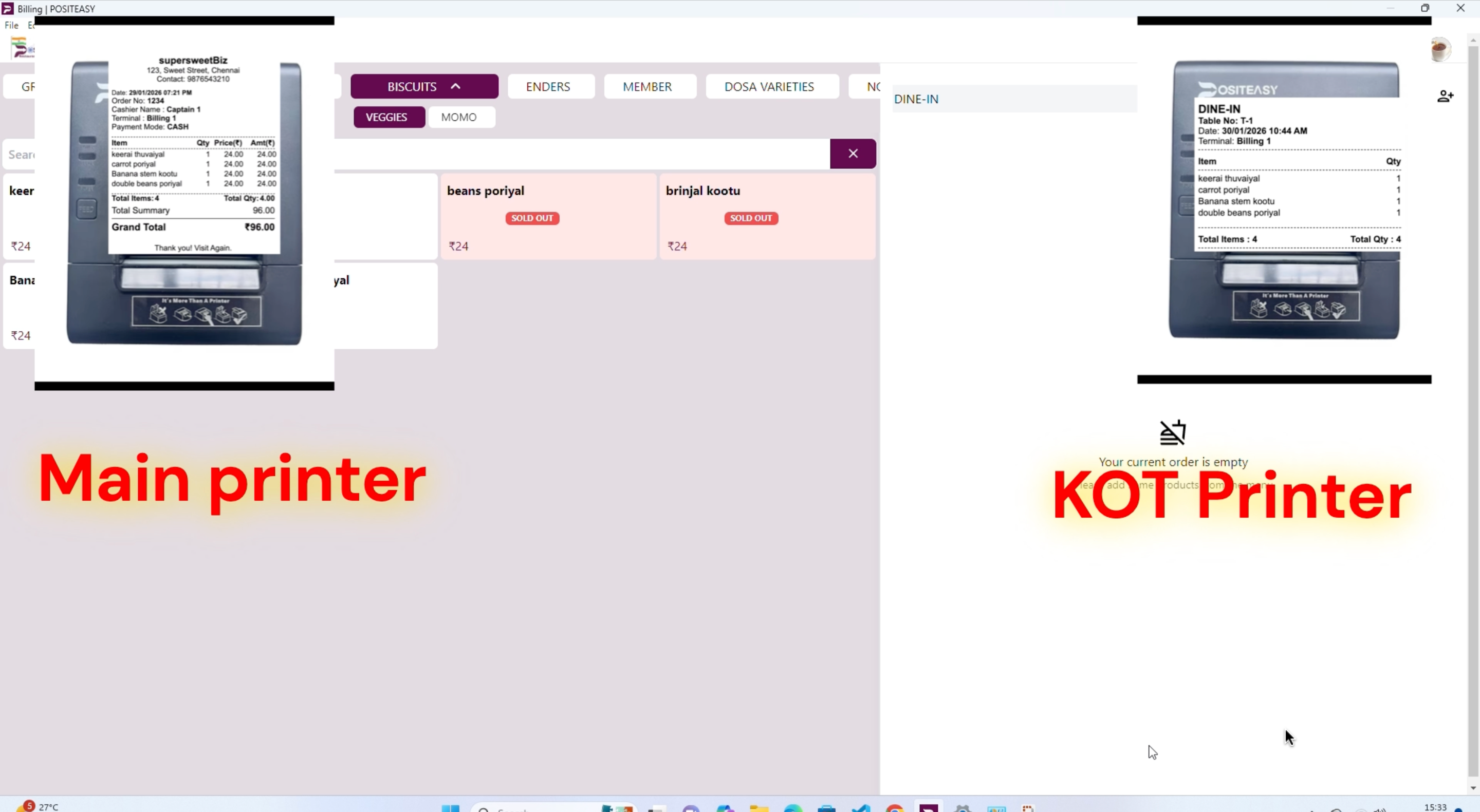
When you generate a bill with the KOT option selected, the customer bill prints from the main printer and the KOT prints from the kitchen printer.
(Optional) Set up counter-wise KOT printers
Use this setup when you want to print separate KOT slips to different counters.
-
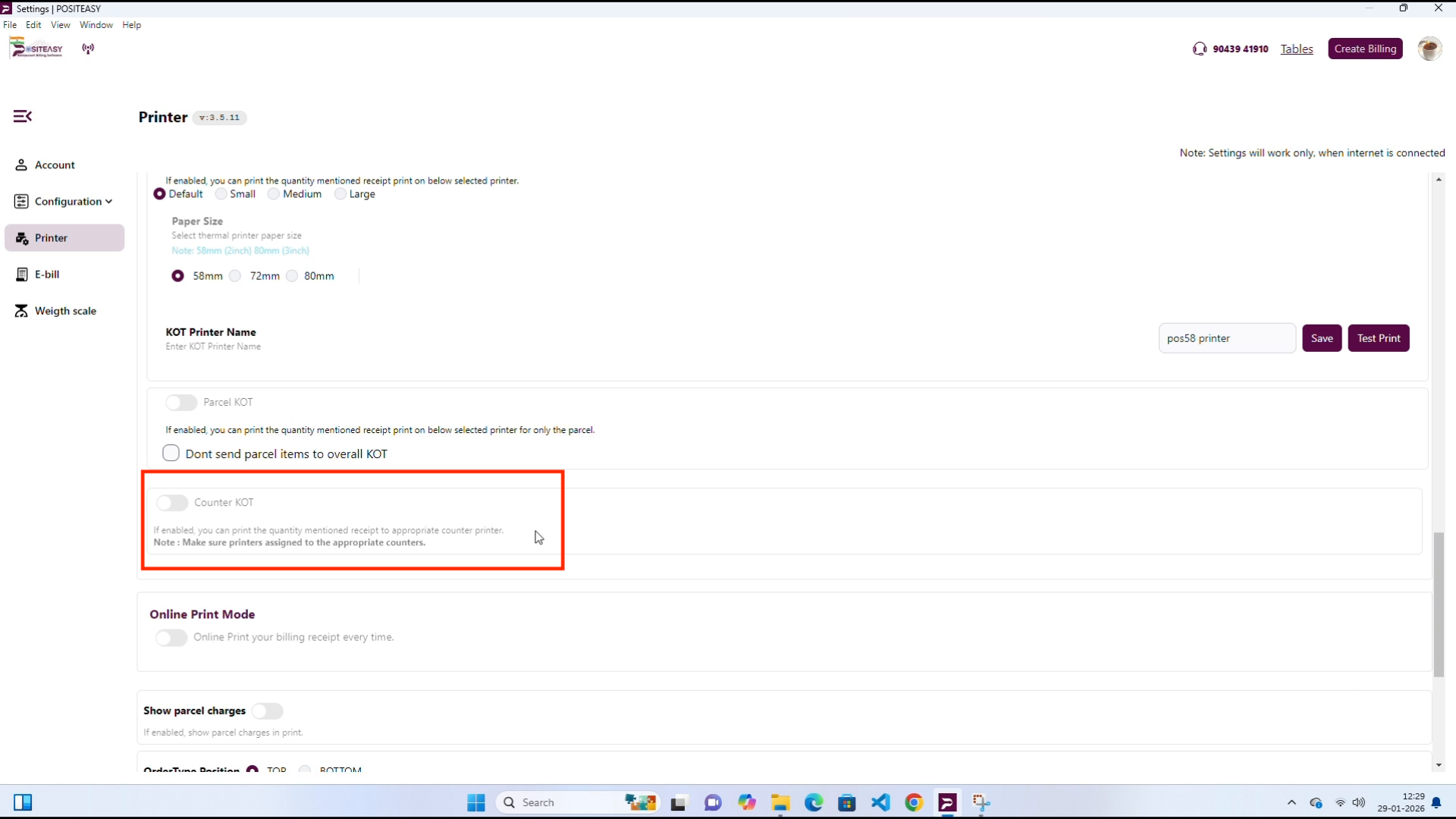
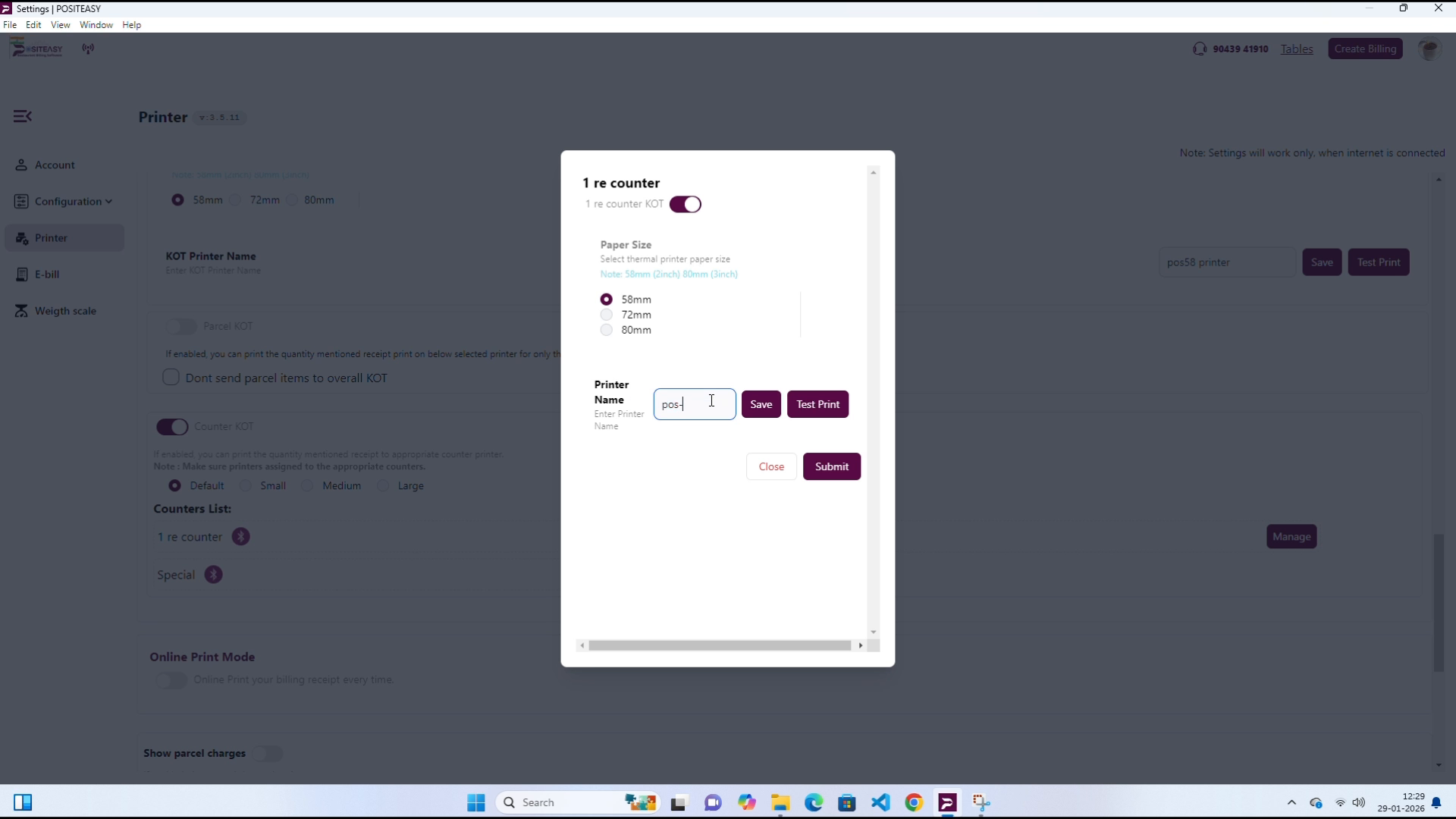
Step 1: In Printer settings, under KOT Print Mode, turn on Counter KOT.
-
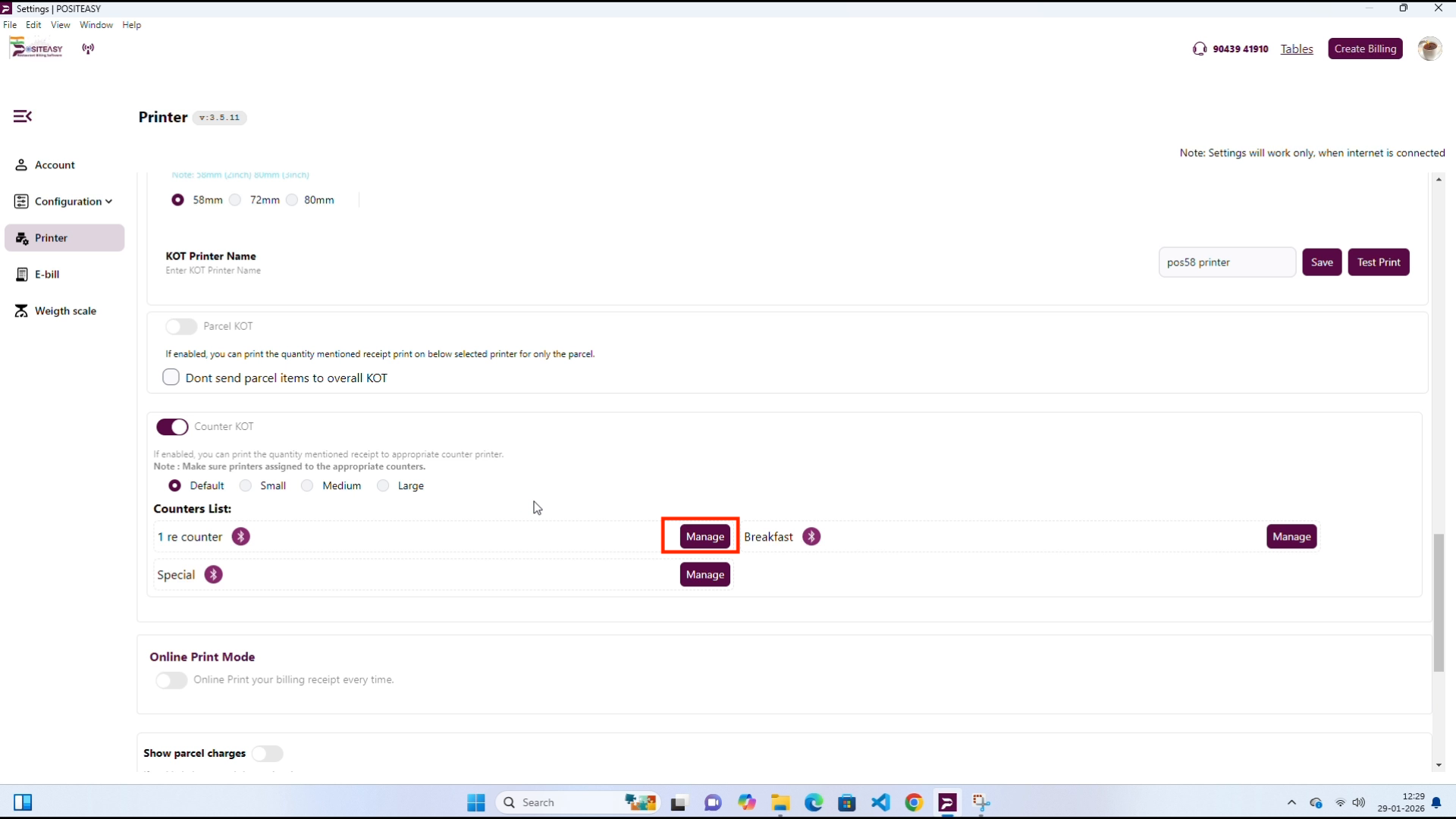
Step 2: Next to the counter you want to configure, select Manage.
-
Step 3: Configure the counter printer.
-
Select the Paper Size.
-
Enter the Windows printer name in Printer Name.
-
Select Save, and then select Submit.
-
Repeat these steps for each counter.
-
After you finish, an order that includes items from multiple counters prints separate KOT slips for each counter.